⚡ Zero Local Setup
Skip installing gigabytes of Android Studio, Gradle daemons, or Java SDKs. Everything is processed seamlessly in the cloud.
Convert any HTML file, CSS, JavaScript, or ZIP web app archive into a native Android APK or Play Store-ready AAB file in minutes.
Read the step-by-step setup guide ↓Supports .html, .zip (with JS, CSS, assets), or vanilla single files
To convert HTML to APK online free using LiteAI, upload your local index.html file or ZIP project bundle. Our cloud compiler packages your web assets inside a high-speed Chromium WebView container, generates an AndroidManifest.xml with selected hardware permissions, and produces a testable .APK or signed .AAB bundle ready for publication to the Google Play Store.
Skip installing gigabytes of Android Studio, Gradle daemons, or Java SDKs. Everything is processed seamlessly in the cloud.
Upload a single raw HTML file or package entire directories with images, JSON feeds, and custom CSS without path breaking.
Your HTML assets run locally within the APK's /assets directory, functioning reliably without requiring an active internet connection.
Generate release-ready Android App Bundles (.aab) with SHA-256 keystore signatures targeting the latest Android API level specifications.
Converting a desktop or mobile web script into an installable Android binary requires more than a simple bookmark shortcut. LiteAI uses an enterprise-grade compilation pipeline to convert HTML files into true native Android application packages.
When you convert an HTML file to APK, your code is compiled into the isolated Android device storage. This ensures low latency, instant rendering, and compatibility with HTML5 LocalStorage, IndexedDB, and client-side caching.
Your JavaScript code can interface directly with physical Android hardware. Whether you need access to the camera, geolocation sensors, or local notifications, our automated bridge injects Cordova and Capacitor-compatible native APIs into your build.
Every Android app requires a valid manifest and package identity (e.g., com.yourbrand.app). Our cloud builder handles package namespace validation, icon asset generation across all screen densities (hdpi, xhdpi, xxhdpi), and builds secure release signing keys automatically.
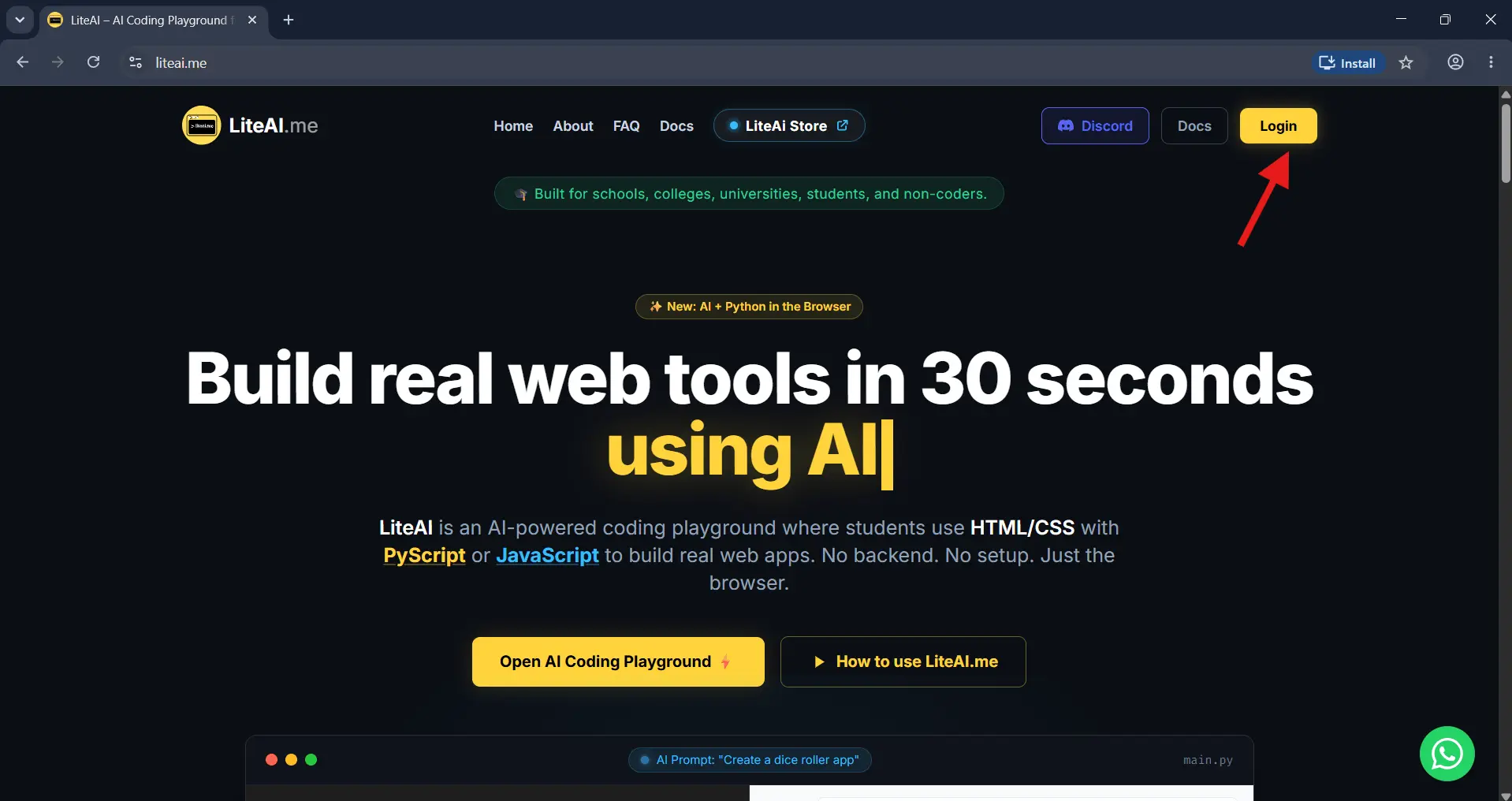
Navigate to the LiteAI homepage. Click the Login button in the top navigation bar to securely access your developer account and view your cloud instances.
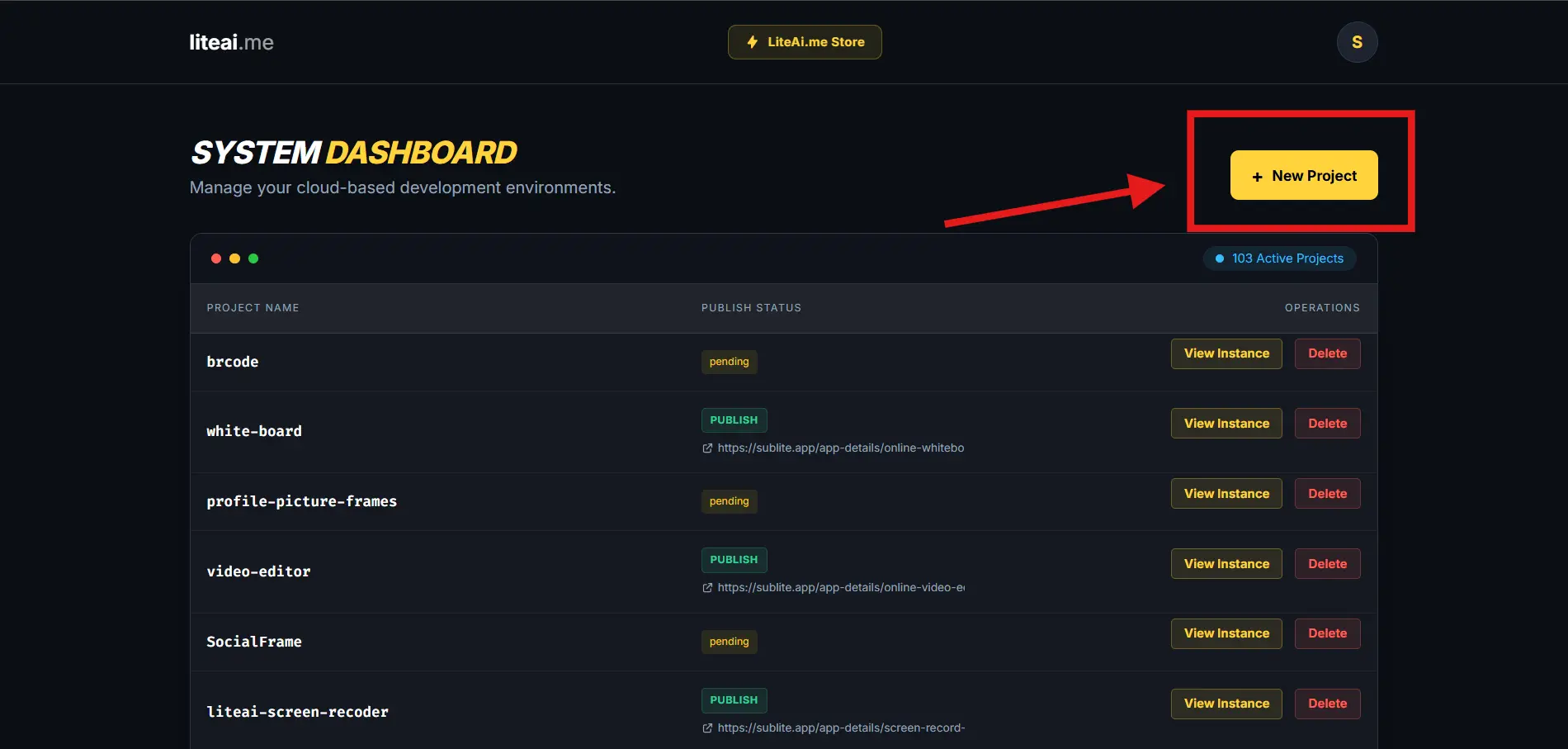
Once authenticated, you will arrive at the System Dashboard. Click the + New Project button to allocate a secure, containerized environment for your new Android application.
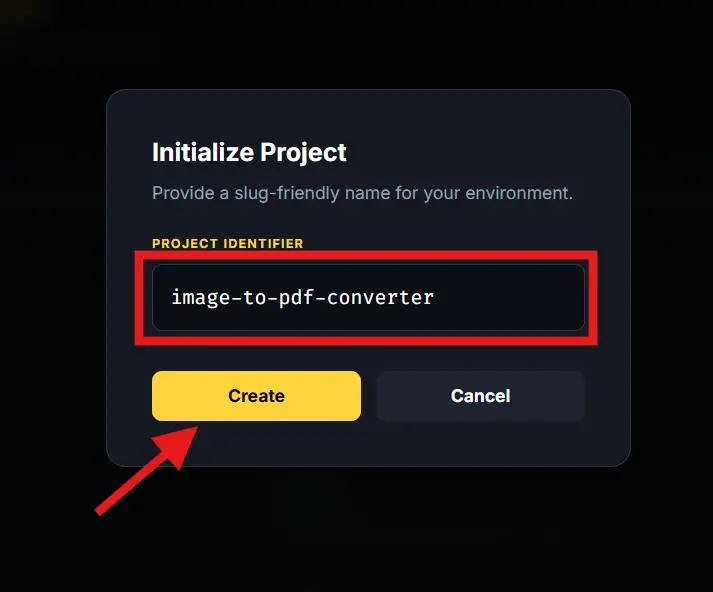
In the initialization modal, assign a unique, URL-friendly slug (e.g., my-offline-app). This acts as the internal identifier for your project's web architecture before compilation.
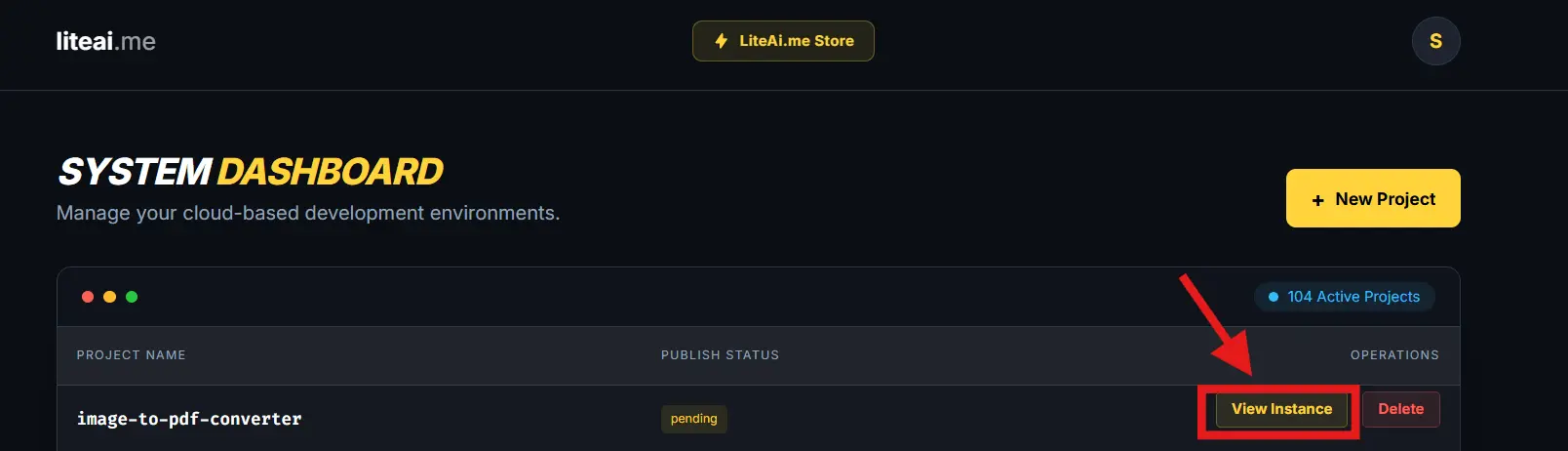
Locate your newly created workspace in the Active Projects table. Click View Instance to open the Integrated Development Environment (IDE) where you will structure your HTML and JS.
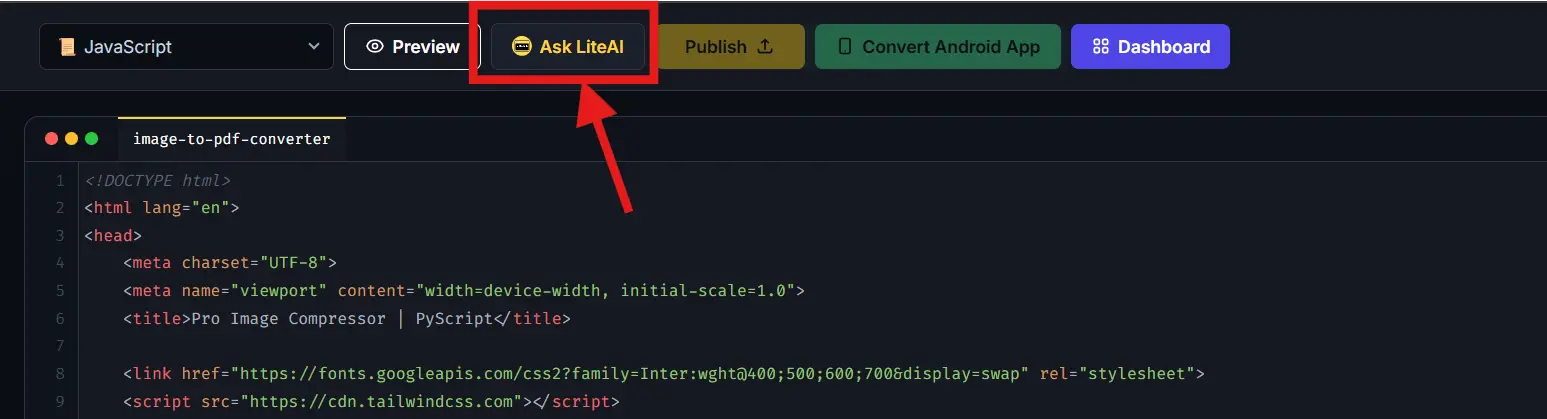
If you prefer not to write raw code manually, click the Ask LiteAI action button. This connects you to our built-in LLM tailored specifically for mobile-responsive web development.
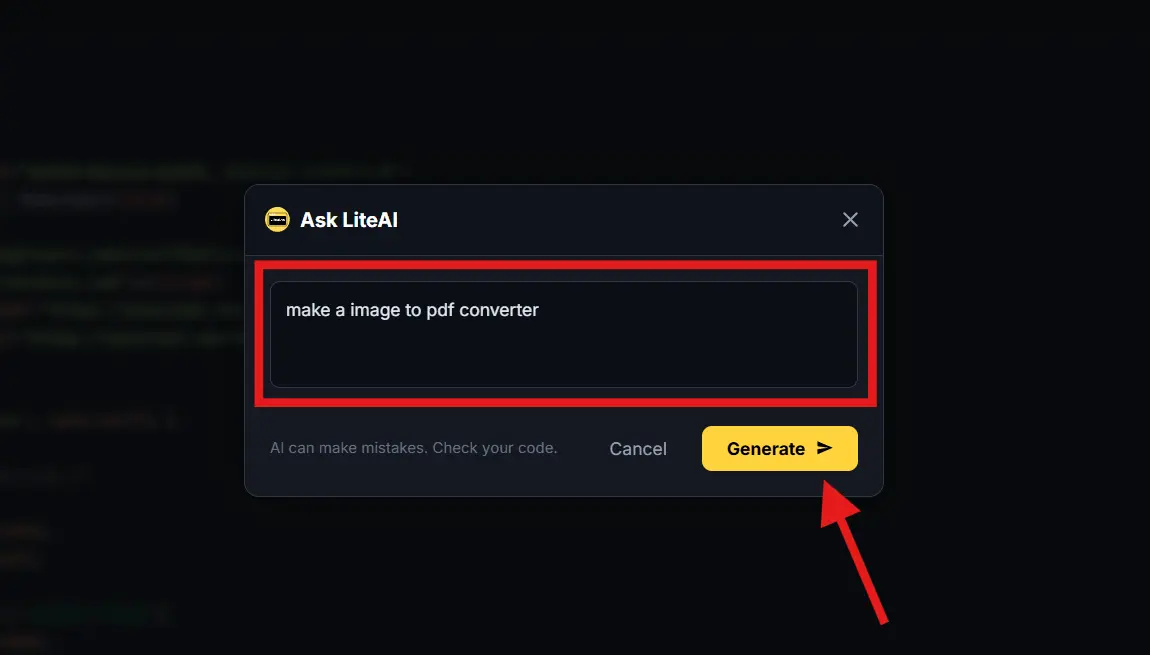
Provide a detailed prompt detailing your desired features. Click Generate > and the AI will script the necessary HTML, inline CSS, and JavaScript interactions required for your tool.
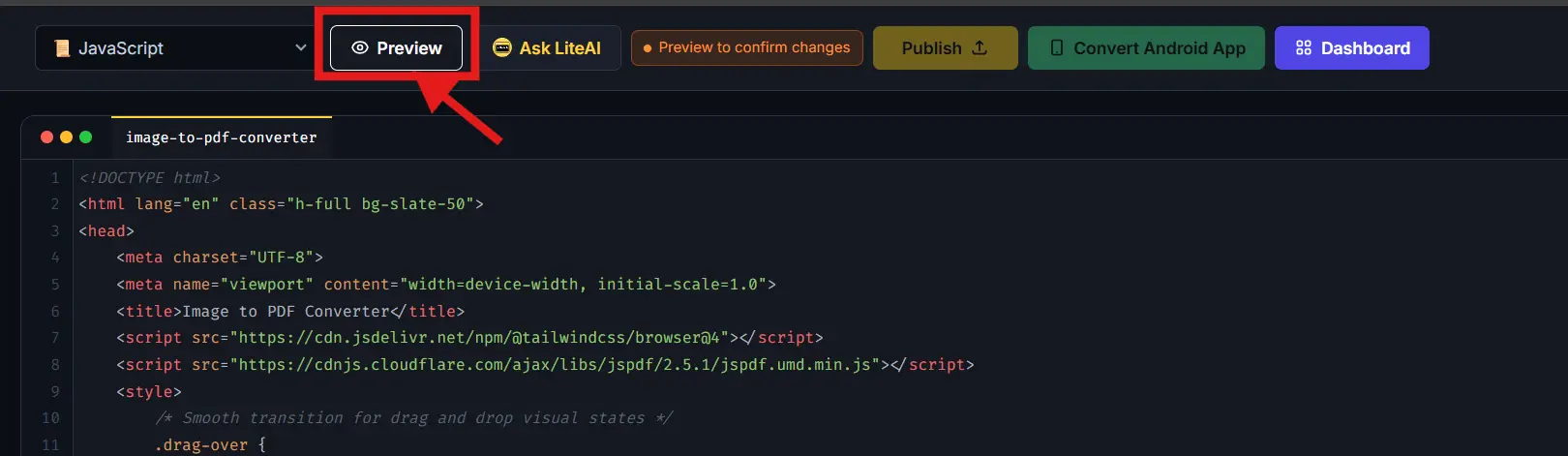
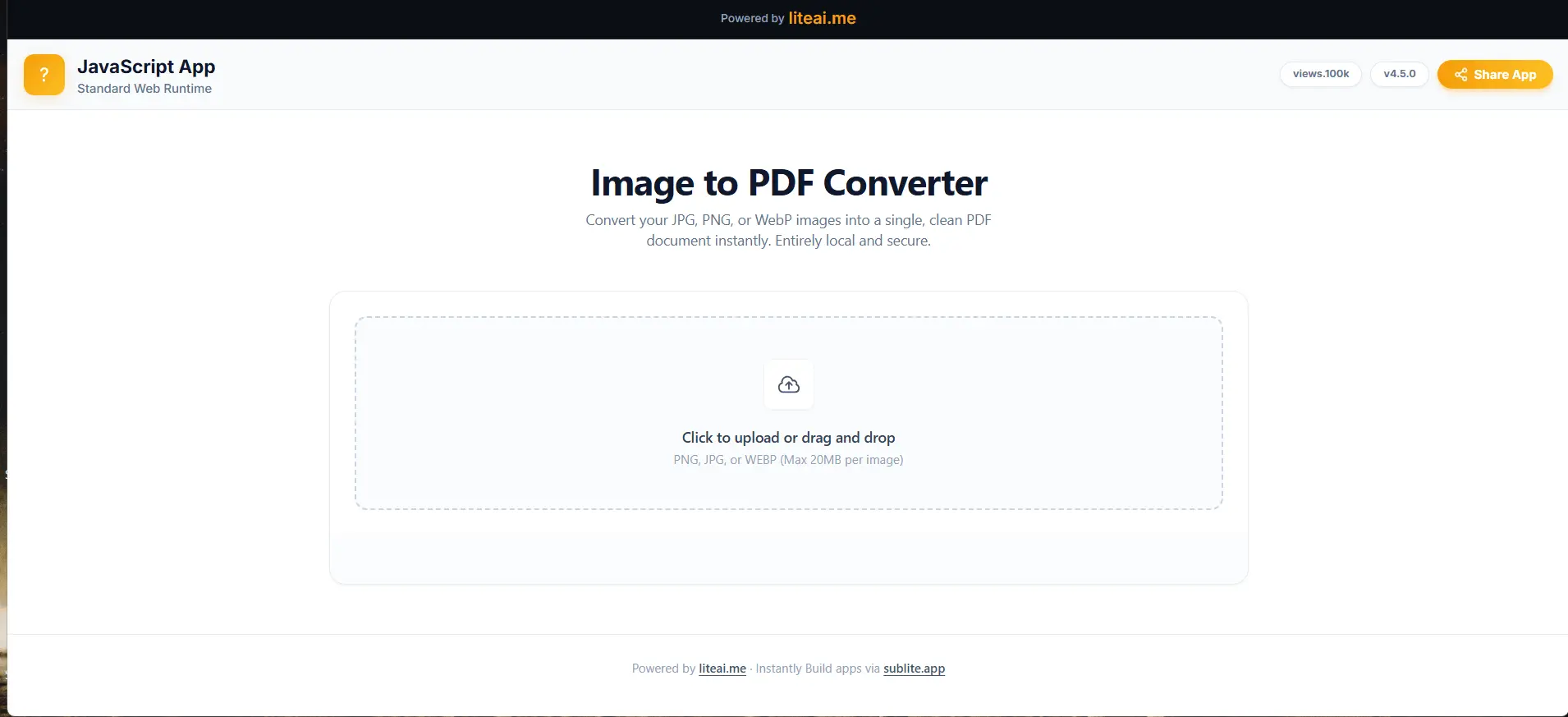
Once your source code is populated, click Preview. This renders the virtual Document Object Model (DOM) allowing you to see exactly how the UI will look on a mobile screen.
Interact with the preview to test your application's functionality. Ensure API calls, button clicks, and visual state changes execute correctly before moving to the Android packaging phase.
Click Convert Android App. Here, you define your package name and enable specific hardware permissions (like Local File Storage) which will be injected into the final AndroidManifest.xml.
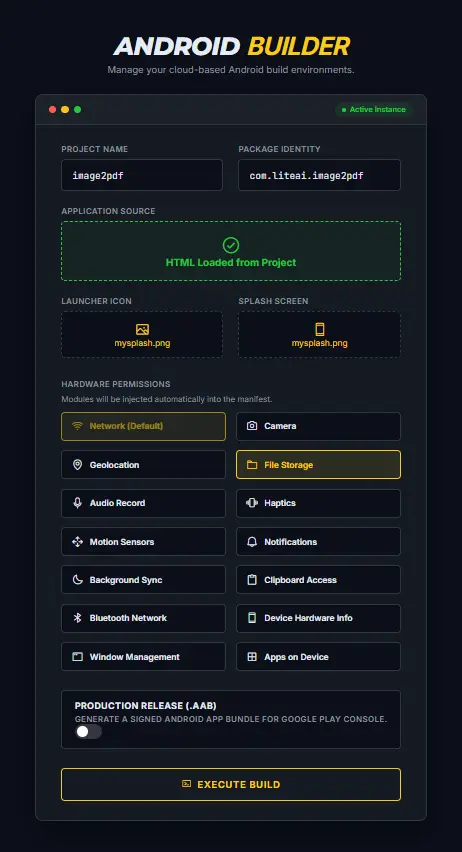
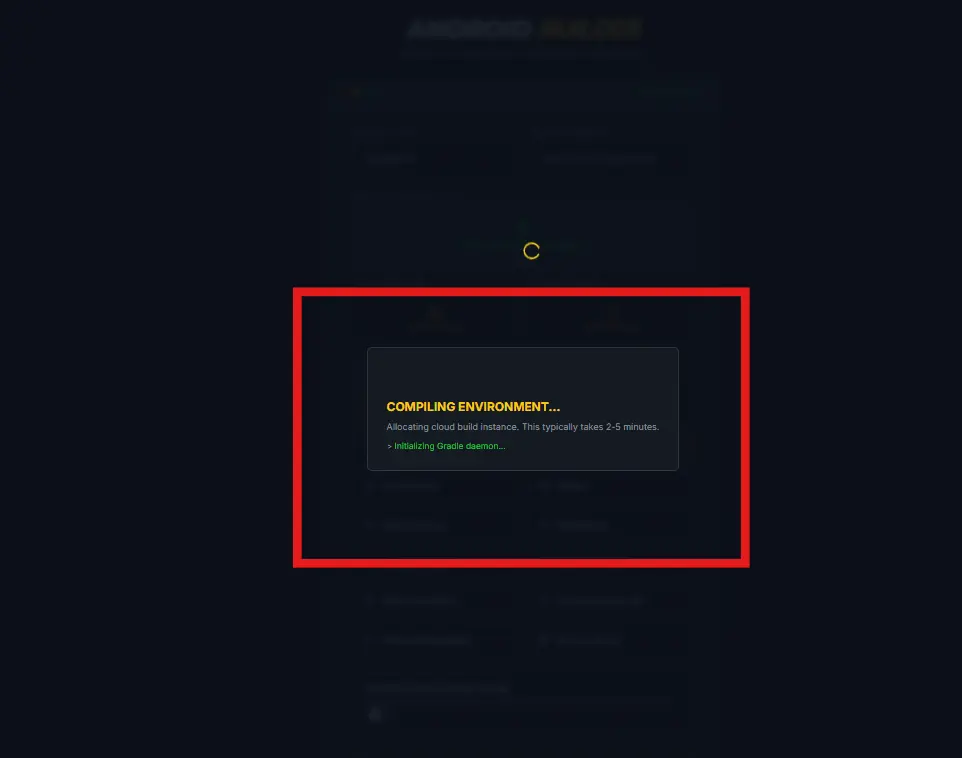
Confirm your build settings to trigger the cloud compilation. Our servers will utilize Gradle to wrap your web assets inside a native WebView engine without requiring local Android Studio installation.
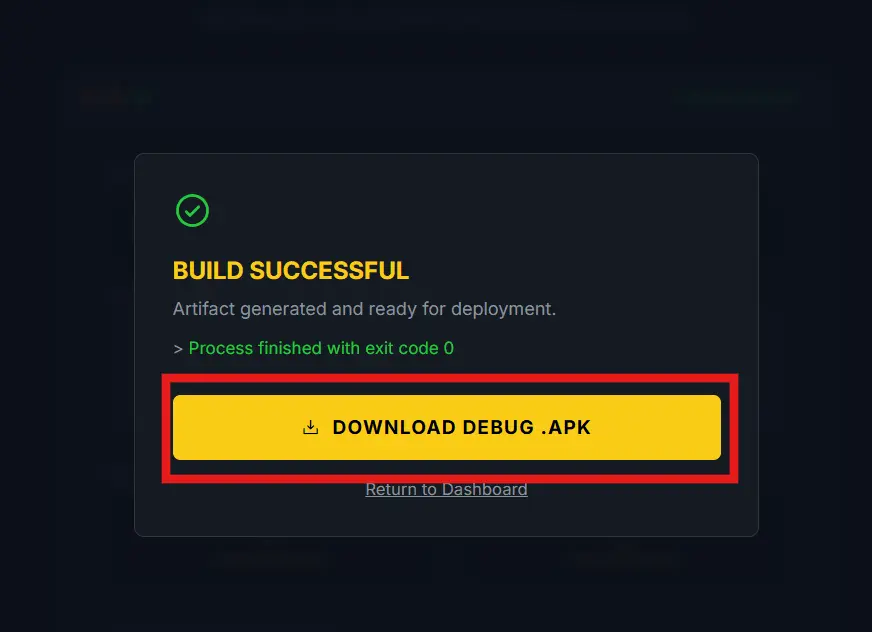
Upon successful build completion, your binaries are ready. Download the standard .APK for direct device sideloading, or the signed .AAB bundle for immediate submission to the Google Play Console.
Yes. LiteAI allows you to import HTML files, preview app functionality, set up package configurations, and generate testable APK files online for free.
If your website is already hosted online and you want to convert the live URL into an app with push notifications and live syncing, use our dedicated Website to App Converter tool.
No. The entire build, dexing, and zipalign pipeline runs on our remote servers. You do not need to download the Android SDK, Java JDK, or configure Gradle on your local machine.
Apps built on our free tier include a lightweight LiteAI watermark and standard ads to help keep the core compiler accessible to everyone. To generate a completely white-labeled app with zero watermarks, no ads, and no third-party branding, you can instantly unlock our Premium builder.